
Overview
Set up Foxora in the safest order: install the appropriate client, sign in, choose an autonomy default, open a small project, and complete one verified task.
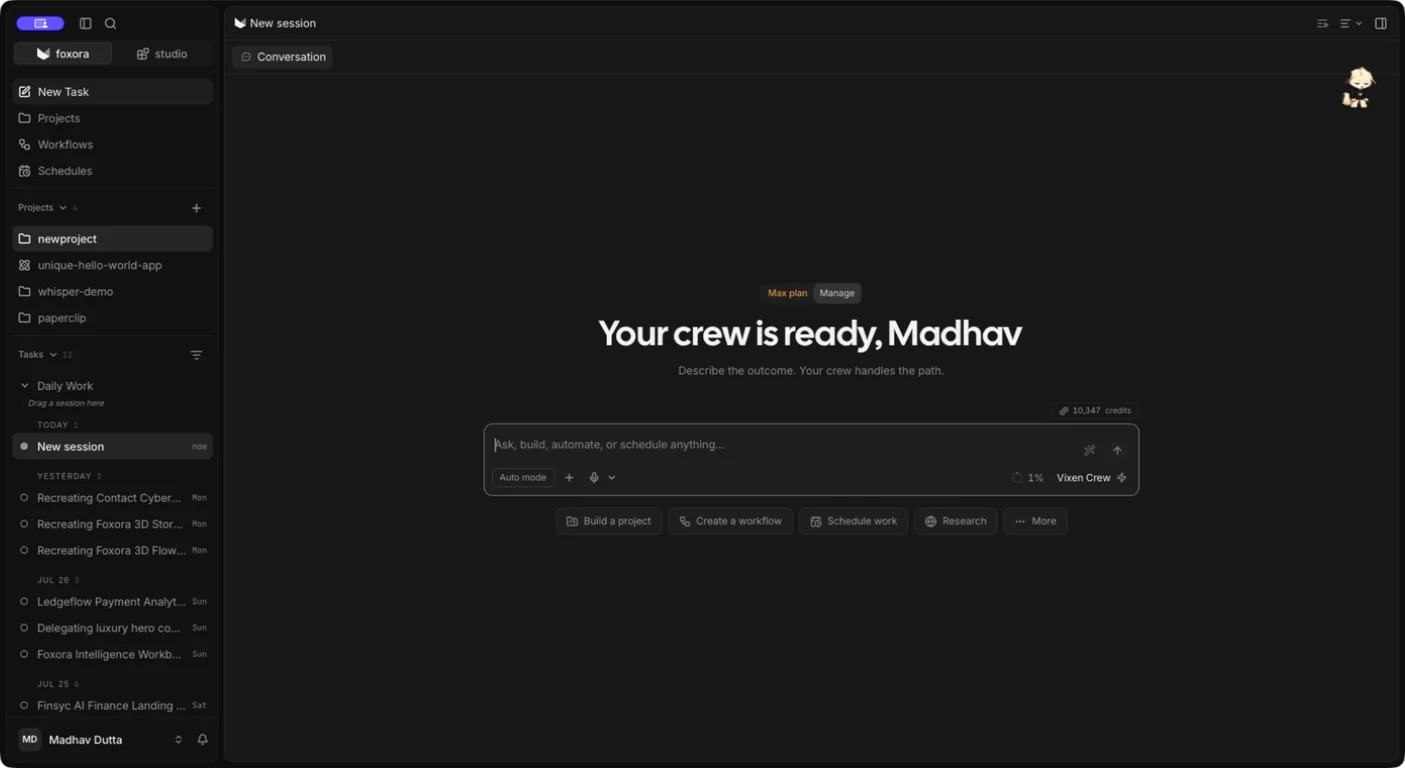 Getting Started in Foxora Desktop v5.0.3
#Where this lives
Start in the Foxora sign-in screen, New Task, or Settings → About.
Foxora v5.0.3 has two top-level workspaces: foxora for tasks, projects, workflows, and schedules; and studio for bots, agents, crews, skills, tools, memory, and plugins.
Safety: Download installers only from Foxora or the official release repository. Attach only folders needed for the task.
#Steps
- Start in the Foxora sign-in screen, New Task, or Settings → About.
- Set up Foxora in the safest order: install the appropriate client, sign in.
- Choose an autonomy default.
- Open a small project.
- Complete one verified task.
- Sign in, confirm version 5.0.3, keep Ask Permissions for the first task, and use the smallest project or cloud workspace that contains the required work.
- Confirm the result. Create a task from New Task, send a small request, and confirm the result in the transcript, Stage, project, or external destination.
#Choose the right path
- Use Desktop for local projects and visual work.
- Use the web app when you do not need local files.
- Use the CLI for terminal-first or scripted work.
#Confirm it worked
- Create a task from New Task, send a small request, and confirm the result in the transcript, Stage, project, or external destination.
- The screen, command, file, run, or destination named in this guide reflects the expected state.
In this section
Introduction to FoxoraUnderstand the relationship between a task, project, agent, crew, Stage, tools, and local Memory Den before configuring advanced features.InstallationInstall Foxora on Windows or macOS, or set up the CLI and web app on Linux.System requirementsCheck OS version, CPU architecture, memory, disk space, internet access, and platform-specific runtimes before downloading an installer.First-run setupFinish browser sign-in, select a cautious autonomy default, review local-data permissions, choose a theme, and create the first task.Quickstart: complete your first taskOpen a small test folder, ask for one clearly measurable change, review the plan and approvals, then verify the changed file or command output.Updating FoxoraCheck the installed Desktop or CLI version, save active work, install the signed update, restart the runtime, and verify with a small task.Uninstalling and resetting FoxoraChoose between removing the application, resetting preferences, clearing local tasks and memory, or deleting the account; export local data before destructive actions.